Become a VIP! Sign up for our VIP Texts and get notified of free products,
exclusive live events, and special offers!
VIP Texts are currently only available to phone numbers in the US.
By submitting this form, you agree to receive recurring automated marketing text
messages (e.g. AI content, cart reminders) from Scrapbook.com at the number you
provide. Consent not a condition of purchase. You may share info with service providers
per our Privacy Policy. Reply HELP for help & STOP to cancel. Msg frequency varies. Msg &
data rates may apply. By submitting this form, you also agree to our
Terms
&
Privacy Policy.
Check your texts
Reply ‘Y’ to confirm your subscription.
Explore Paper Crafting Tutorials, Card Making Tips & Scrapbook Ideas
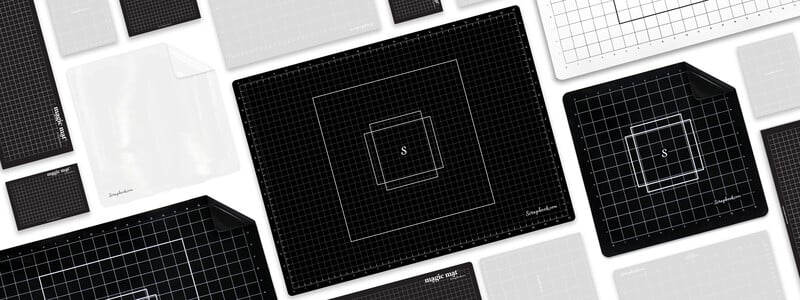
Clearly, this mat is amazing, and we want to share everything you need to know about cleaning and caring for your Clearly Amazing Mat from Scrapbook.com!
Scrapbook.com began in 1999 as a passion project by Jill and Charlie Davis to create a welcoming online space for crafters to share, learn, and find high-quality supplies. From humble beginnings in Mesa, Arizona, it has grown into the world’s...
Scrapbooking is a fun and creative way to document your life and preserve your special memories. It's also a great way to express yourself and share your story with others. Whether you're a beginner looking to learn the basics or an experienced...
From Roman beginnings to the Catholic church and medieval poets to cryptic messages through flowers, how Valentine's Day became a day intertwined with card giving is a deeply woven history.
New to embossing? This guide explains everything you need to know about embossing machines, embossing folders, and how embossing actually works in papercrafting. Learn why most modern die cutting machines already function as embossing machines, how...
Learn the essential scrapbook supplies for beginners, including paper, albums, adhesives, tools, and storage. This complete guide helps you choose the right materials to start scrapbooking and create stunning layouts with ease.
Discover everything you need to know about Scrapbook.com Cardstock, including smooth, canvas, glimmer, and Swiss dot finishes in A2 and 12 x 12 sizes. Made in the USA with premium Swedish paper, this high-quality, core-dyed cardstock is designed for...
This comprehensive die cutting troubleshooting guide helps you fix the most common die cutting and embossing problems — including dies not cutting all the way through, embossing folders not embossing deeply enough, warped cutting plates, cracked...
Learn how to scrapbook with this simple step-by-step guide for beginners. From choosing scrapbook supplies and photos to exploring layout ideas, journaling, and embellishments, this guide will help you create a meaningful DIY scrapbook that...
Looking for creative scrapbooking ideas to inspire your next project? This article explores how scrapbooking allows you to document memories, express creativity, and create meaningful keepsakes through themed layouts, personal storytelling, and...
Feeling overwhelmed by craft room clutter? This mindset-focused guide to craft room organization reveals five powerful mindset shifts that help crafters organize their supplies, reduce creative overwhelm, and reclaim time for making. Learn why most...
What is scrapbooking? Scrapbooking is a creative and meaningful way to preserve memories using photos, journaling, and memorabilia arranged in a decorative album. This beginner-friendly guide explores the basics of scrapbooking, including memory...
What is scrapbook paper? This complete beginner’s guide explains everything you need to know about scrapbook paper, including common sizes, finishes, paper weight, cardstock vs patterned paper, vellum, acetate, and more. Learn how scrapbooking paper...
Catherine Pooler ink pads are premium water-reactive dye inks designed for effortless stamping, smooth ink blending, watercolor techniques, and vibrant cardmaking. Featuring four coordinated collections—Party, Spa, Neutrals, and Metallics—these...
Scrapbooking is a fun and creative way to document your life and preserve your special memories. It's also a great way to express yourself and share your story with others. Whether you're a beginner looking to learn the basics or an experienced...
Whether you’re brand-new to ink or you’ve been blending for years, this guide breaks down every Lisa Horton ink type—what it is, how it behaves, which tools to pair with it, and the techniques it loves. You’ll also find quick product overviews and...
Check your list and check it twice - Scrapbook.com's 2025 Holiday Gift Guide has everything you need to check this season's top crafty tools and supplies off everyone's Christmas lists (including your own!).
Not sure which Simon Hurley Ink Pad is right for you? This guide breaks down the differences between the original Simon Hurley Ink Pads and the brand-new Stellar Ink Pads, both featuring the same beloved dye ink formula. From felt vs. foam pads to...
Everything You Need to Know About Scrapbook.com’s Magnetic Upgrade to the Original Magic Mat® (Patent Pending)
What is the Magnetic Magic Mat?
The Magic Mat you know and love just got even more magical! Scrapbook.com has reimagined...
Scrapbook.com has been named one of Newsweek’s America’s Best Online Shops for 2025! This recognition highlights our dedication to providing delightful service, a safe and secure shopping experience, and a promise to ship your orders quickly. Above...
Join Stacey Park as she guides you through creating a dazzling gift tag using her Tag Project Kit and Microfine Glitter! Discover tips and techniques for applying ultra-fine glitter to add shimmer and shine to your projects!
World Card Making Day is back - and we've hand-selected some of the best cards created in 2025 (so far!) to showcase. See what other card makers have created and get inspired!
We want to express our sincere gratitude to our employees for their hard work and dedication. Your contributions have earned Scrapbook.com recognition as a Top Workplace in Arizona.